Guides
WebRTC Leak Shield: Complete Guide to Blocking Browser IP Leaks
WebRTC Leak Shield: Complete Guide to Blocking Browser IP LeaksGuides
Your VPN is connected. Your proxy is configured. Your anti-detect browser fingerprint looks perfect. And yet, your real IP address just leaked through WebRTC in the background—silently exposing every account you manage. This guide walks you through building a complete WebRTC leak shield across browsers, operating systems, and Undetectable.io profiles.
What is a WebRTC leak and why you must fix it now
WebRTC (Web Real-Time Communication) can reveal your real IP even when you’re behind VPNs, proxies, or anti-detect browsers. For multi-account users in 2024, this represents a critical security threat that can collapse months of careful profile separation in seconds.
WebRTC is browser technology designed for real-time communication—video calls, voice chat, peer-to-peer file sharing, and similar services. It has been enabled by default in Google Chrome, Mozilla Firefox, Microsoft Edge, and other major web browsers since around 2013. The technology powers legitimate services like Zoom, Google Meet, and Discord voice chat.
A WebRTC leak occurs when a website can obtain network addresses exposed by the browser’s ICE/WebRTC process, which in some cases may reveal your real IP or other identifying network data despite a VPN or proxy. This happens through a mechanism called ICE (Interactive Connectivity Establishment), which uses STUN servers to discover your network addresses. The frightening part? This can happen silently in the background while you browse, without any visible indication.
For Undetectable.io users running multi-accounting operations, the stakes are severe:
- A single WebRTC leak can link your supposedly “separate” profiles to one identity
- Ad platforms like Facebook and Google can cluster dozens of accounts to your office IP
- Traffic arbitrage campaigns can be flagged when leaked IPs reveal team infrastructure
- Marketplace accounts on Amazon or TikTok Shop can face mass suspensions
Understanding the difference between public and local IPs matters here. Your public IP (the one that identifies you to the internet, your ISP, and your geographic location) is the dangerous leak. Local IPs are usually less dangerous than a leaked public IP, but they can still provide tracking or fingerprinting signals and should not be ignored in high-risk setups.
The rest of this article shows you step-by-step how to disable WebRTC where needed, shield WebRTC leaks in browsers and OS firewalls, and configure Undetectable.io profiles for maximum protection.
How WebRTC leaks work under the hood
Understanding the mechanics helps you prevent ip leaks more effectively. Here’s what happens when WebRTC exposes your real IP.
The WebRTC connection process works like this:
- Your browser creates an RTCPeerConnection object when a website requests it
- The browser immediately begins gathering “candidate” IP addresses via ICE
- STUN servers are queried to discover your public-facing IP address
- All discovered IPs are shared with the remote peer—or in malicious cases, with a website’s script
A website can run just a few lines of JavaScript to trigger this ICE gathering process. The script creates a peer connection, listens for ICE candidates, and reads the complete list of discovered IP addresses. Depending on the browser, OS, and VPN/proxy setup, WebRTC may expose your real IP, your VPN/proxy IP, or only limited candidate information.
IPv6 makes webrtc leaks even more damaging. While IPv4 addresses are often shared across multiple users through NAT, IPv6 addresses are typically assigned per-device and can persist for months. This makes fingerprinting and long-term tracking significantly easier.
Here’s the critical point for anti-detect browser users: even if your fingerprint is perfectly spoofed in Undetectable.io—canvas, WebGL, fonts, screen resolution, timezone—a leaked residential IP or office IP still deanonymizes your entire operation.A leaked real IP can severely undermine profile isolation and make otherwise separate fingerprints much easier to correlate.
Different browsers handle WebRTC exposure differently. Some filter out local IPs using mDNS (multicast DNS) candidates, while others expose raw IP addresses. This inconsistency is why browser-specific shielding strategies are essential.
How to test if you have a WebRTC leak
Before implementing protection, you need to know your current exposure level. Here’s the proper webrtc leak test methodology.
Step 1: Establish your baseline
- Connect to your VPN, proxy, or activate your Undetectable.io profile with its configured proxy
- Visit a standard IP checker (whatismyipaddress.com or similar)
- Note the “expected” IP—this should be your VPN or proxy server’s exit IP
Step 2: Run WebRTC-specific tests
Visit these reliable test sites and check the WebRTC sections:
- ipleak.net
- browserleaks.com/webrtc WebRTC and fingerprinting tests
- dnsleaktest.com
- Whoer.net anonymity and leak checks
- Search for “WebRTC Leak Test” for additional verification tools
Step 3: Interpret your results
- If WebRTC shows only local IPs (192.168.x.x, 10.x.x.x, 172.16-31.x.x): Generally safe
- If WebRTC shows your expected VPN/proxy IP: Protection is working
- If WebRTC shows a different public IP or your ISP’s IPv6 address: You have a leak requiring immediate action
Test multiple browsers—Chrome, Firefox, Edge, Safari—because each has different default WebRTC behavior. A profile that’s secure in Firefox might leak in Chrome.
Retest after every major change:
- New VPN provider or proxy configuration
- Browser version updates
- Extension installations or removals
- Creating new profile templates in Undetectable.io
- Before launching new marketing campaigns
Browser-level WebRTC Leak Shield
Browser settings and extensions provide the fastest layer of WebRTC leak shield protection. Apply these before moving to OS-level firewall rules.
Chrome-based browsers (Chrome, new Edge, Brave, Opera) cannot fully disable webrtc through native settings. You’ll need browser extensions or anti-detect browser configurations to limit IP exposure.
Firefox-based browsers offer more granular WebRTC controls through about:config preferences. You can genuinely disable peer connections if your workflow allows it.
Safari and iOS browsers have WebRTC enabled by default but are somewhat less prone to classic leaks due to Apple’s architectural choices. However, they provide minimal user control and should be used cautiously for sensitive multi-accounting work.
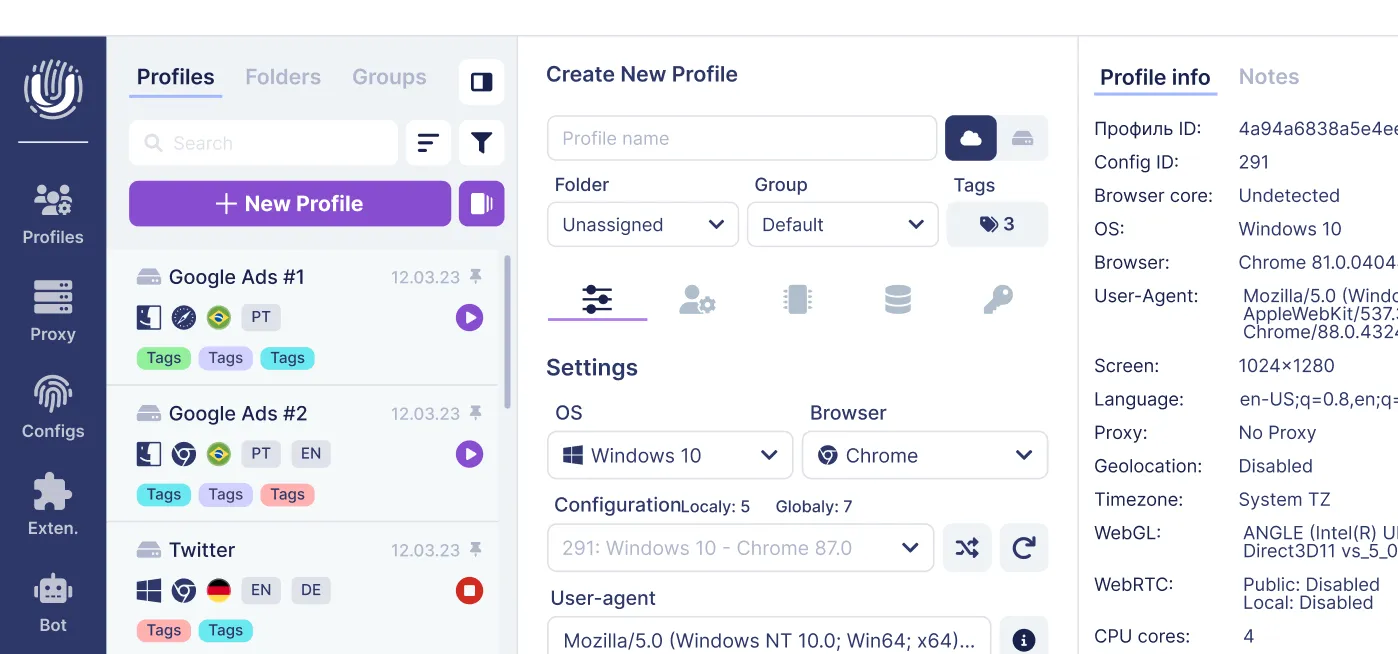
Undetectable.io anti-detect browser profiles can be configured with safe WebRTC behavior per profile—disabled, proxy-only, or default-like modes—reducing the need for separate extensions.
WebRTC leak shield for Google Chrome and other Chromium browsers
Chrome desktop does not allow full WebRTC shutdown via standard settings. Here’s your protection checklist:
Desktop Chrome protection:
- Install a reputable WebRTC-blocking extension from the Chrome Web Store
- Look for extensions that “limit IP leak” rather than completely killing WebRTC functionality
- Some privacy extensions block only WebRTC IP-handling (safer for most sites)
- Full script-blocking extensions may break video calls, live chats, or platform verification flows
For ad platform and marketplace users:
- Prefer “limit IP leak” type settings over completely disabling WebRTC
- Platforms like Facebook, TikTok, and Amazon may require occasional video verification
- Test your extension configuration against actual platform functionality before campaigns
Chrome on Android:
- Type chrome://flags in the address bar and press enter
- Search for WebRTC-related flags (STUN origin header or similar)
- Disable settings that unnecessarily expose network details
- Warning: Flags change between Chrome versions, so document what you change
Always re-run webrtc leak test checks after installing or adjusting extensions and after major Chrome updates. Extensions can be reset, permissions revoked, or behavior changed by browser updates.
WebRTC leak shield for Mozilla Firefox
Firefox provides the most granular native WebRTC control among mainstream browsers. Here’s how to disable webrtc manually:
Accessing about:config:
- Open a new Firefox tab
- Type about:config in the address bar
- Press enter and accept the warning about modifying advanced settings
- Use the search bar to find media.peerconnection.enabled
Disabling WebRTC:
- The default value is true
- Double click the preference to toggle it to false
- The change takes effect immediately—no browser restart required
Setting media.peerconnection.enabled to false effectively disables WebRTC peer connections and stops most classic IP leaks. However, this will break in-browser video calls, Google Meet, Zoom web client, and similar conferencing tools.
For users who occasionally need WebRTC:
- Keep WebRTC enabled by default
- Install a WebRTC-blocking add-on that allows per-site control
- Whitelist trusted sites (Zoom, Google Meet) while blocking unknown sites
Firefox also supports other WebRTC-related preferences:
- media.peerconnection.ice.proxy_only forces ICE candidates through proxy only
- media.peerconnection.ice.default_address_only limits candidates to default interface
For Undetectable.io users leveraging Firefox profiles, align these about:config settings with your profile’s network configuration. Ensure the browser only exposes the proxy or VPN IP assigned to that specific profile.
WebRTC leak behavior in Safari on macOS & iOS
Safari presents a different challenge with limited user control over WebRTC.
macOS Safari:
- WebRTC is enabled by default
- No simple user-facing switch exists to disable it entirely
- Apple has implemented some leak mitigations (mDNS candidate filtering)
- Manual control is significantly less granular than Firefox
iOS Safari:
- WebRTC is enabled with limited user controls
- Apple’s sandboxed app architecture provides some isolation
- No equivalent to Firefox’s about:config exists
Recommendations for multi-accounting users:
- Avoid Safari for critical profiles requiring strict WebRTC leak protection
- Use anti-detect browsers like Undetectable.io on macOS instead
- On iOS, double-check VPN reliability and regularly run WebRTC leak tests
- For typical personal browsing, Safari’s WebRTC behavior is usually acceptable
For professional arbitrage, SMM work, or marketplace management, Safari should not be your primary workhorse browser. The limited control options create unnecessary risk.
System-level WebRTC Leak Shield (firewall and OS rules)
OS-level firewall rules represent advanced protection primarily for power users, VPS owners, or businesses running privacy-critical operations. These rules create an additional layer beyond browser-based protection.
WebRTC traffic uses UDP (primarily) and TCP ports for media transmission and STUN server communication. System firewalls can filter this traffic before it leaves your device:
- macOS/BSD: pf (packet filter)
- Linux: iptables or nftables
- Windows: Windows Defender Firewall
Critical warning: Blindly blocking all UDP traffic will break video calls, VoIP services, DNS queries, and many streaming platforms. Rules must be planned and tested carefully.
WebRTC leak shield on macOS & Linux (pf / iptables concept)
Here’s the high-level approach for implementing system-level WebRTC protection on Unix-like systems.
macOS (pf firewall):
- Open Terminal (Applications → Utilities → Terminal, or use Spotlight search)
- Edit the pf configuration file (/etc/pf.conf) with administrator privileges
- STUN/TURN commonly use port 3478 by default, and secure TURN commonly uses 5349, but WebRTC media and relay traffic may also use broad dynamic port ranges, so firewall rules must be designed and tested carefully for the specific environment.
- Save the file carefully
- Reload the pf config using pfctl commands
- Verify rules loaded correctly with status commands
Linux (iptables/nftables):
- Open Terminal (Ctrl+Alt+T or applications menu)
- Edit firewall rules to add DROP or REJECT rules for outbound UDP to STUN server ports
- Save configuration using iptables-save or equivalent
- Verify rules are active
Making protection persistent:
- Create a Launch Daemon (macOS) or systemd service (Linux) to load rules at boot
- Consider using immutable file flags to prevent malware from silently removing WebRTC protection
- Document all changes for troubleshooting
WebRTC leak shield on Windows (firewall rules concept)
Windows 10/11 users can implement system-level WebRTC blocking through Windows Defender Firewall.
Setting up protection:
- Open Command Prompt or PowerShell as Administrator (right-click Start → select admin option)
- Create new outbound rules blocking UDP and TCP traffic on WebRTC-associated ports
- Target correct network profiles (Domain/Private/Public) based on your environment
- Create corresponding inbound rules to prevent unsolicited WebRTC traffic
Verification steps:
- Use firewall listing commands to confirm rules are active
- Open Windows Defender Firewall with Advanced Security GUI to visually verify
- Run WebRTC leak tests from your browser to confirm blocking works
Documentation practices:
- Record each rule: name, ports blocked, date created
- Note which applications might be affected (video conferencing, gaming)
- Maintain rollback procedures for business workstations
Always back up firewall configurations before making changes, especially on remote VPS or production systems where physical access for recovery isn’t available.
WebRTC leak shield in anti-detect browsers (Undetectable.io focus)
Anti-detect browsers must control WebRTC rigorously to maintain profile isolation. Without proper WebRTC handling, all fingerprint spoofing becomes pointless.
Undetectable.io emulates distinct hardware and software fingerprints for each profile:
- Canvas and WebGL rendering
- Font lists and screen resolution
- Timezone and language settings
- Audio context fingerprints
But if WebRTC leaks your real IP behind all these profiles, external systems can instantly correlate them. One leaked office IP behind 50 “separate” profiles tells platforms they belong to the same operator.
Undetectable.io network configuration:
- Each profile maintains independent proxy configuration
- IP rotation can be managed per profile
- Unlimited local profiles allow clean separation for large-scale operations
- WebRTC behavior can be set per profile: disabled, proxy-only, or default-like modes
Recommended configuration for high-risk operations:
- Set WebRTC to disabled or proxy-only modes
- Bind each profile to its own dedicated proxy
- Verify protection via leak tests inside that specific profile
- Use the strictest mode compatible with your platform requirements
Undetectable.io supports both local and cloud profiles. If you use local profiles, profile data stays on your machine, which can reduce certain exposure risks compared with cloud-stored data. New users can download Undetectable for Mac and Windows and choose from flexible Undetectable.io pricing plans that match their multi-accounting scale.
WebRTC leak shield for multi-accounting and arbitrage workflows
Real-world multi-accounting operations face sophisticated correlation systems, similar to the anti-bot and fingerprinting defenses used in Twitch’s 2025 crackdown on bots. Here’s how to protect against them.
How platforms detect linked accounts:
Platforms like Facebook, Google, TikTok, Amazon, and Twitter/X correlate multiple data points:
- IP address (including WebRTC-discovered IPs)
- Browser fingerprint
- Behavioral patterns
- Cookies and device IDs
- Login timing and geographic patterns
A webrtc leak shield protects against one of their highest-confidence signals. IP correlation is difficult to spoof at scale without dedicated infrastructure.
Safe multi-accounting setup:
- Each Undetectable.io profile uses a dedicated residential or mobile proxy
- WebRTC is restricted to that profile’s proxy only
- Use cookie robot to warm profiles before live campaigns and combine this with specialized cloaking services for ad campaigns
- Never mix office IP traffic with profile traffic
Team operational security:
- Avoid scenarios where WebRTC could expose your office IP across multiple profiles
- A leaked office IP for dozens of profiles triggers wide-scale bans
- Platforms may flag your entire subnet for investigation
Regular audit schedule:
- Monthly checks of WebRTC leak behavior across sample profiles
- Test after browser engine updates
- Test after proxy provider changes
- Document results for compliance and troubleshooting
Internal WebRTC policy:
Create documentation specifying:
- Which profile types may use video calls (looser WebRTC settings)
- Which profiles must stay hardened at all times (arbitrage, high-value accounts)
- Testing procedures before campaign launches
- Escalation process when leaks are detected
Why WebRTC leak prevention matters for privacy and business continuity
WebRTC leak prevention isn’t just about online privacy—it’s about protecting your business operations and investments.
Concrete risks of WebRTC leaks:
- Account bans on ad networks (Facebook, Google, TikTok Ads)
- Lost access to marketplace seller accounts with funds and inventory
- Exposure of real office or home IPs to competitors or bad actors
- Linkability between separate client projects managed by your agency
- Legal and privacy implications in strict jurisdictions (GDPR, etc.)
- Complete undermining of expensive infrastructure investments
A single WebRTC leak can bypass premium residential proxies, VPS configurations, and anti-detect browser setups you’ve spent thousands on. One browser tab exposing your real IP renders all that protection ineffective.
Business impact for professionals:
For B2B/B2C marketers, agencies, affiliate networks, and traffic arbitrage teams, WebRTC leak shielding directly affects:
- Campaign ROI (banned accounts = lost ad spend and revenue)
- Platform trust scores
- Scaling capacity (can you safely add more accounts?)
- Team productivity (time spent on account recovery vs. campaign work)
Layered defense strategy:
Position Undetectable.io as a central component in your protection stack:
- Proper VPN/proxy setup as your network foundation
- Browser-level WebRTC control via settings and extensions
- OS firewall hardening where security requirements demand it
- Disciplined profile management with clear WebRTC policies
Adopt a “test, harden, retest” mindset. Treat WebRTC protection as an ongoing process—not a one-time checkbox you set and forget.
Step-by-step: building your WebRTC Leak Shield stack
Here’s your action checklist synthesizing everything into an ordered playbook.
Step 1: Establish your network foundation
- Choose a reputable VPN or high-quality proxy provider
- Verify they correctly hide your IP with basic IP checks before dealing with WebRTC
- Confirm your provider claims explicit WebRTC leak protection
- Test with multiple IP checking tools to establish baseline
Step 2: Configure browser-level protection
- Install appropriate WebRTC-blocking extensions on Chrome/Chromium browsers
- Configure about:config settings on Firefox (type media.peerconnection.enabled, set to false if needed)
- Immediately retest with WebRTC leak tools after every change
- Document which browsers and profiles have which settings
Step 3: Layer OS-level firewall rules (advanced users)
- Create firewall rules restricting WebRTC-related UDP/TCP traffic
- Use pf on macOS, iptables/nftables on Linux, Windows Defender Firewall on Windows
- Make rules persistent across reboots
- Back up configurations before making changes
Step 4: Configure Undetectable.io profiles
- Create or adjust profile templates with safe WebRTC behaviors
- Bind each profile to its own proxy
- Leverage unlimited local profiles for clean separation
- Set strictest WebRTC mode compatible with each profile’s use case
Step 5: Integrate regular testing
- Run WebRTC leak tests before launching new marketing campaigns
- Retest after major browser updates or proxy provider changes
- Establish fixed testing schedules (weekly or monthly depending on operation scale)
- Verify no WebRTC leaks or DNS leaks appear across your profile fleet
The investment in proper WebRTC protection is minimal compared to the cost of mass account bans or exposed operations. For teams relying on multi-accounting, SMM, traffic arbitrage, or large-scale e-commerce operations, start testing Undetectable.io for free and implement a robust WebRTC Leak Shield across your entire workflow.
Related posts
View all articlesJoin 450,000+ users who chose Undetectable
- Advanced anti-detection technology
- Unlimited local profiles from $49
- The perfect solution for multi-accounting