Guides
Start pages and bookmarks in Undetectable: how to set up quick access to work sites
Start pages and bookmarks in Undetectable: how to set up quick access to work sitesGuides
When working with multiple profiles, you often have to open the same sites: an IP and browser fingerprint checker, an ad account, a tracker, and analytics. You need the checker before you start working, while the other services are used as needed.
In Undetectable, you can set up start pages and bookmarks for this. Let’s look at how to start work by checking a profile, open the necessary sites on launch, return to previous tabs, and import bookmarks into several profiles at once.
Element names are given for the English Undetectable interface. Instructions for bookmarks inside a launched browser apply to Chromium-based profiles.
What to choose: start pages, tab restoration, or bookmarks
These features solve different tasks and can complement each other.
| Task | What to use |
| Start every time by checking the IP and browser fingerprint | Start pages |
| Continue working with the tabs left after closing | Restore previous session |
| Keep reports, instructions, and other useful links at hand | Bookmarks |
| Launch a profile with a blank page | The about:blank start page
|
One of the most common scenarios is to set a checker as the start page and save the ad account, tracker, and analytics in bookmarks. This way, after launch, you first check the connection and profile parameters, and then move on to work.
You should not add your entire work list to autostart. Each page that opens may load data and consume proxy traffic. Start with one or two checkers or other sites that are truly needed at every launch.
How to set up a profile start page
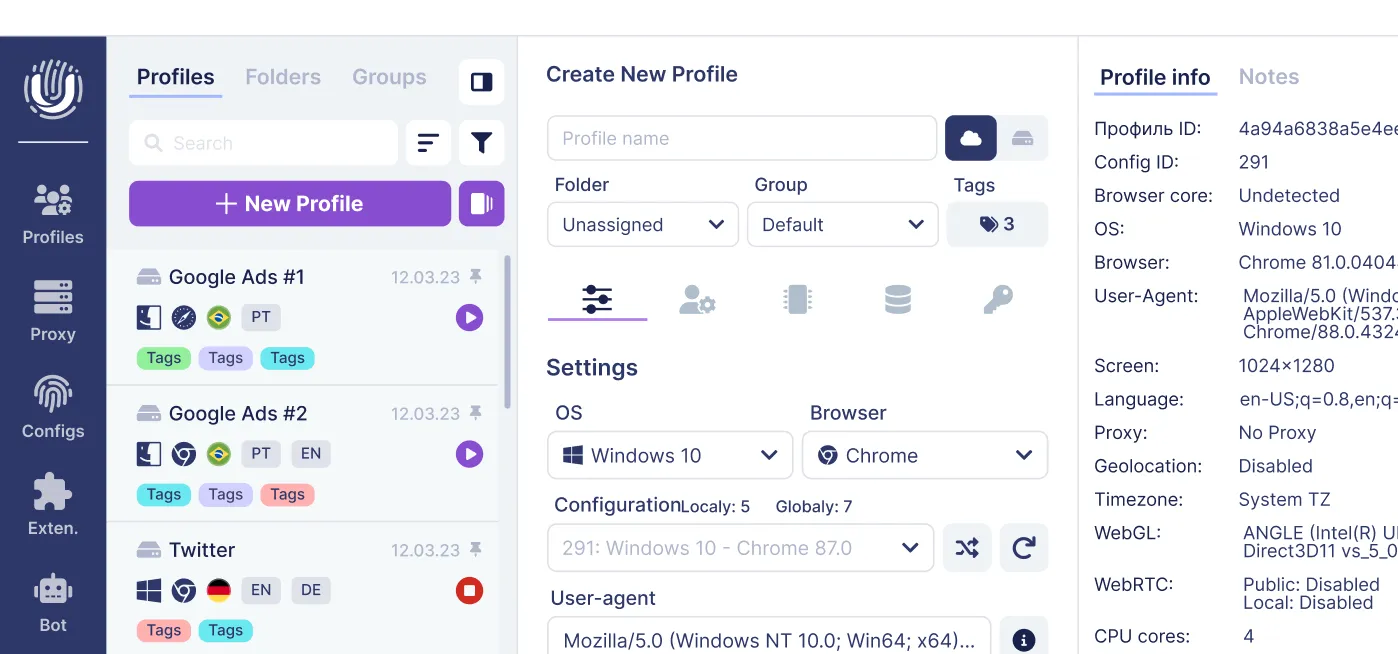
In the profile creation window, on the right under Profile info, there are two related parameters:
- Start page — the page address or a list of addresses.
- At profile start — the mode that determines browser behavior on launch.
You need to configure both fields. An address in Start page alone does not mean the browser will open it at every start.
Open one site
- Click New Profile or open the settings of the existing profile you need.
- Find the Start page field on the right.
- Paste the full address of the page you need, including
https://. - In At profile start, select Open a start page or set of pages.
- Save the changes. For a new profile, Create and Open are available: the first button creates the profile, the second creates and launches it.
It is better to copy the address from an already opened work page. This reduces the chance of making a mistake in the domain or saving a link to another section of the service.
If you are creating a profile for the first time, first follow the initial setup guide.
Open several sites
Enter the addresses in Start page separated by spaces, for example:
https://ads.google.com/ https://analytics.google.com/
Then select Open a start page or set of pages and save the profile. The separator between addresses is specifically a space: you do not need to add commas or semicolons. This format is specified in the Undetectable FAQ.
For a work profile, you can use links to specific accounts and reports. After setup, check each one: the correct domain does not guarantee that the right project opened.
The start page opens an address, but does not log in to an account. If there is no active session, the site will ask you to authorize. Adding a URL does not replace cookies and does not grant access to an ad account.
Launch a profile with a blank page
In Start page, specify:
about:blank
In At profile start, leave Open a start page or set of pages.
This is useful if you want to choose the first site yourself or not load work services immediately after launch. The full address about:blank is given in the Undetectable documentation.
A blank page and the browser’s standard new tab are different options. For an explicitly blank page, use about:blank instead of simply clearing the field hoping to get the same result.
Return to previous tabs
In At profile start, select Continue where you left off.
This mode is suitable for long work sessions: for example, when you are studying several reports and want to return to them at the next launch. If the workday should start with a constant set of sites, choose to open start pages.
Tab restoration does not guarantee that unsaved text in forms or an active website authorization will be preserved. Save important changes in accounts and documents before closing the browser.
Check the result
After setup:
- Launch the profile and see which pages opened.
- Close the profile in the usual way.
- Wait for it to finish running in Undetectable.
- Launch the same profile again.
Relaunching helps you check the selected scenario. For start pages, the specified set of addresses should open; for continuing work, the previous tabs should be restored.
Check the profile launch specifically. Creating a new tab with the “+” button is a separate action that does not check the At profile start setting.
Checker on the start page: checking before work
A checker is a site that shows your external IP and the browser parameters available to the site. Add it to the start pages so that every time you launch the profile, you immediately see which connection and settings you are starting work with.
For example, BrowserLeaks IP helps check the external IP and its geography, while Pixelscan checks browser fingerprint parameters. BrowserLeaks has separate tests for DNS and WebRTC. On pages where the check does not start automatically, click the test launch button.
In the Start page field, you can specify one address or several separated by spaces:
https://browserleaks.com/ip https://pixelscan.net/
In At profile start, select Open a start page or set of pages and save the settings. When restoring the previous session, you should not rely on the checker necessarily opening: for regular checking, you need the start pages mode specifically.
After launch, check three things:
- External IP and country. They should match the connection you planned to work with. When the IP changes on a mobile or other rotating proxy, compare the result with the expected connection conditions.
- Time zone, language, and browser parameters. Compare them with the profile settings; unexpected discrepancies are better resolved before logging in to a work service.
- The results of the DNS and WebRTC tests you need. If an unexpected address or another sign of an incorrect connection is found, check the proxy and profile settings, then repeat the test.
If you want to check the connection before accessing the work site, leave only the checker in autostart and open the account from bookmarks after checking. A second address in Start page does not wait for the test on the first one to finish: an account added there will also start loading.
The checker result helps notice setup errors, but does not guarantee the absence of checks or restrictions from the site. Evaluate the specific parameters and your work scenario, not only the service’s final score.
How to set start pages for new profiles
If most of your profiles start with the same set of sites, set it in advance:
- Open Settings → Profiles.
- In the Default settings for new profiles block, select the first tab with the slider icon — Settings.
- At the bottom, find Start page and At profile start.
- Specify the addresses and the desired mode.
- Click Save.
These are default settings for new profiles. Use them as an initial set of parameters, and refine the addresses for a specific project in the profile itself. Do not expect that changing this section will reconfigure already created profiles. The purpose of the section is described in the documentation.
It is convenient to add an IP or browser fingerprint checker to the general settings: it will be useful in different profiles. Links to a specific client’s account are better stored in that profile’s bookmarks so they are not carried over into every new one.
When creating profiles in bulk, start page settings are also available in the additional Mass Creator parameters. Before creating a large batch, check the selected addresses on a small example. More details are in the bulk creation guide.
How to prepare bookmarks for new profiles
In Undetectable, you can prepare in advance the links that will be added to new profiles. To do this, open:
Settings → Profiles → Browser → Bookmarks
The Browser tab is marked with a database icon. Inside it, expand the Bookmarks section.
Two modes are available here:
- Manual — add links manually.
- From file — upload a prepared bookmarks file.
Add links manually
- Select Manual.
- In Site URL, paste the full site address.
- In Bookmark Name, specify the bookmark name.
- Click Add New.
- Repeat the steps for the other links.
- Click Save at the bottom of the settings window.
Use short names that make the purpose clear: “Ad account,” “Tracker,” “Ad library,” “Documentation.” A long site title is usually less convenient on the bookmarks bar.
If the Add New button is unavailable, check that both fields are filled in.
After saving, create a new profile and check the set of links in its browser. To check these settings, you need a new profile specifically: reopening an old one does not replace such a check.
Import a prepared set
If bookmarks have already been collected in another browser, you do not need to transfer them one by one.
- Export bookmarks from the source browser to an HTML file.
- In Undetectable, open Settings → Profiles → Browser → Bookmarks.
- Select From file.
- Click Browse files or drag the file into the designated area.
- Click Save.
- Create a new profile and check the result.
Undetectable supports importing a bookmarks file exported from a Chromium browser to add it to new profiles.
For this import, you need a file created by the bookmark export function. A regular TXT with a list of URLs, a cookies file, and a saved HTML page of a website are different data.
Before exporting, check the contents of the set. If personal and work links are mixed in the source browser, prepare a suitable list first.
How to bulk import bookmarks into existing profiles
To add one set of links to several already created profiles at once, use Profiles Manager. You do not need to open each profile and repeat the import inside the browser.
- Prepare an HTML bookmarks file: export the required set from the browser’s bookmark manager. Before bulk upload, check that the file does not contain personal links or accounts belonging to other clients.
- Open Profiles Manager using the Profiles button in the left Undetectable menu.
- Select the profiles that need this set. Before the next step, check the selection and the selected profile counter at the bottom of the manager.
- Right-click the selected profiles and choose Import → Import Bookmarks.
- In the file selection window, specify the prepared HTML bookmarks file and confirm opening it.
- After the import is complete, open one of the selected profiles and check the links and folders in the bookmark manager. If the bookmarks bar is hidden, you can enable it separately.
The import applies to the selected existing profiles. The Bookmarks → From file setting in the general settings solves a different task — preparing bookmarks for future profiles. If the set is needed for both current and new profiles, use both methods.
For the first bulk upload, first test the file on one test profile, then apply it to the rest. Do not upload the same set again without checking the result. Import transfers links, but not website authorization, and it does not create permanent bookmark synchronization between profiles.
How to use bookmarks in an existing profile
For already created profiles, two scenarios are available: import a prepared set via Profiles Manager or work with individual links inside the browser. Bulk import is described above; below is how to add, open, and organize bookmarks in one profile.
Save the current page
- Launch the required profile.
- Open the page.
- Click the star to the right of the address bar.
- Set a clear name and choose a folder.
- Confirm saving.
For quick access, choose the bookmarks bar. For links you need less often, create a separate folder.
Find, edit, or delete a bookmark
Open the browser menu → bookmarks section → bookmark manager.
Here you can find a saved link, change its name or address, delete an unnecessary entry, and organize folders. Bookmarks can be moved by dragging and dropping. These operations are described in the help for bookmarks in the Chromium browser Chrome.
Deleting a bookmark removes the saved link. The account on the site and the site itself are not deleted because of this.
If the bookmarks bar is not visible
In the browser menu, open the bookmarks section and enable showing the bar. The absence of the bar does not mean the links are gone: first check the bookmark manager.
Useful keyboard shortcuts for Windows:
| Action | Shortcut |
| Save the current page | Ctrl + D
|
| Show or hide the bookmarks bar | Ctrl + Shift + B
|
| Open the bookmark manager | Ctrl + Shift + O
|
Press them inside the launched profile window. The shortcuts apply to the browser, not to the main Undetectable window. Keyboard shortcuts reference.
How to transfer bookmarks between profiles
If the same set is needed in several existing profiles, export it to HTML and use bulk import via Profiles Manager according to the instructions above. To transfer it to a separate open profile, you can use the browser’s own bookmark manager:
- In the source profile, open the bookmark manager.
- In its menu, choose bookmark export.
- Save the HTML file.
- Launch the profile to which you want to transfer the links.
- Open its bookmark manager and choose import from an HTML file.
- Specify the saved file and check the links that appear.
The same file can be used in From file in the general Undetectable settings if the set should be added to future profiles. The HTML format and export procedure are described in the Google Chrome Help.
Transferring bookmarks transfers links, not authorization. In another profile, the site may ask you to log in.
Import should also not be treated as permanent synchronization: if you later edit a link in one profile, do not expect the other copies to update automatically. Reimporting the same set may create duplicates — first check what is already in the target profile.
How to organize links for your workflow
A good structure helps you find the right page without searching among dozens of identical icons.
| Scenario | Start pages | Bookmarks |
| Arbitrage and advertising | IP and browser fingerprint checker | Ad account, tracker, ad library, analytics |
| Marketplace work | Seller account | Orders, products, reports, platform help |
| SMM | Work page or account | Content plan, statistics, project materials |
| Website testing | Blank page or the site being tested | Test sections, documentation, checklist |
For several clients, use the same naming logic: for example, “Client A — reports,” “Client A — account.” The name “Statistics” without context quickly becomes inconvenient.
Bookmark folders inside the browser and Folders in Undetectable serve different functions. The former group links; the latter help organize the profiles themselves.
If something is not working as expected
| Problem | What to check |
| Old tabs open instead of the specified site | Continue where you left off may be selected in At profile start |
| The wrong set opens from several start pages | Check the full addresses and the spaces between them |
| After changing the general settings, an old profile looks the same | Default settings for new profiles applies only to new profiles. Load the HTML file into existing ones via Profiles Manager → Import → Import Bookmarks. |
| Bookmarks are not visible | Check the bar, bookmark manager, folders, and selected profile |
| The Add New button is unavailable | Fill in Site URL and Bookmark Name |
| The bookmarks file is not imported | Make sure it is an HTML bookmark export file |
| Identical links appeared after reimporting | Check whether this set had already been added earlier |
| The start site or bookmark leads to a login page | Check authorization in this profile |
| The site does not load even when the address is entered manually | Check the URL itself, site availability, and the profile connection |
| Settings are saved, but launch is still incorrect | Check the Undetectable version |
In version 2.51.0, the developers fixed the Start page behavior. If you are using an earlier version and encounter pages opening incorrectly, take this fix into account during diagnostics. Update description.
If the problem persists, prepare the program version, the selected launch mode, and a description of the expected and actual results before contacting support.
Check the setup before starting work
It is enough to go through five points:
- The required mode is selected in the profile: start pages or previous tabs.
- On relaunch, the expected set of sites opens.
- Frequently used links are in bookmarks and lead to the correct sections.
- The bookmark set has been checked after import into the selected profiles or when creating a new profile from the general settings.
- Links needed only occasionally do not overload autostart.
Start with one profile: set up the checker on the start page, save work sites in bookmarks, and check the relaunch. Then import the prepared set into the other existing profiles via Profiles Manager, and set default settings for future ones.
Related posts
View all articlesJoin 450,000+ users who chose Undetectable
- Advanced anti-detection technology
- Unlimited local profiles from $49
- The perfect solution for multi-accounting